AutoLastZBot main UI
The bot UI while the app is in the running state:
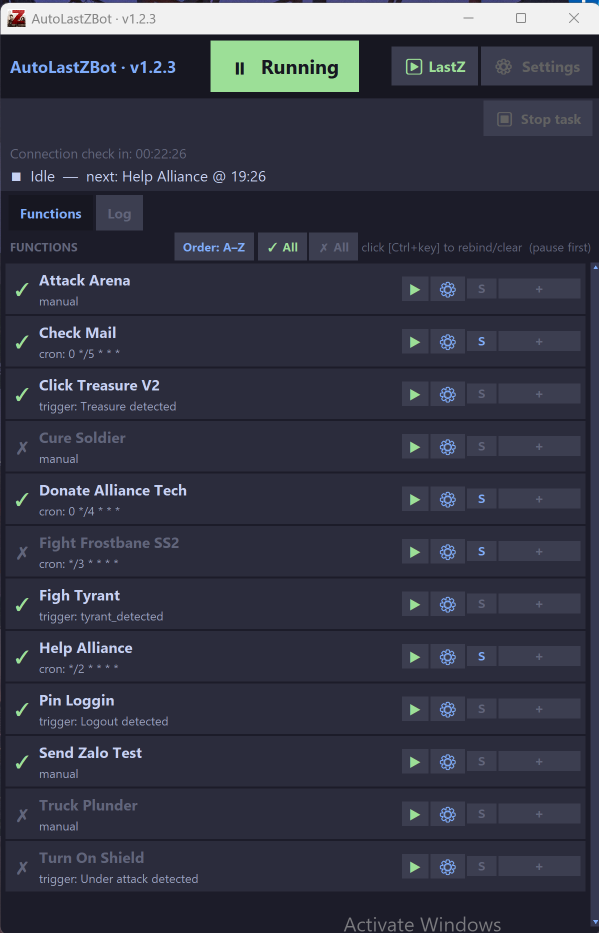
Functions tab
List of functions the bot supports. Each function is an automated action sequence that completes one LastZ task. Details for each function: Functions.
Each row on the Functions tab is one function. From left to right:

- Enable/disable function — green tick icon: turn the function on; uncheck to pause it.
- Function name — the function name, for example Attack Arena.
- Cron — the current schedule (cron syntax), for example
0 */4 * * *. - Play — run this function once immediately.
- Setting (gear) — open this function’s own settings.
- Schedule (S) — set an automatic schedule. Details: Schedule & hotkey.
- Shortcut (+) — assign a hotkey. Details: Schedule & hotkey.
Log tab
- Functions that have already run, with start/end times and events. Use the log to see which functions ran and what they did.
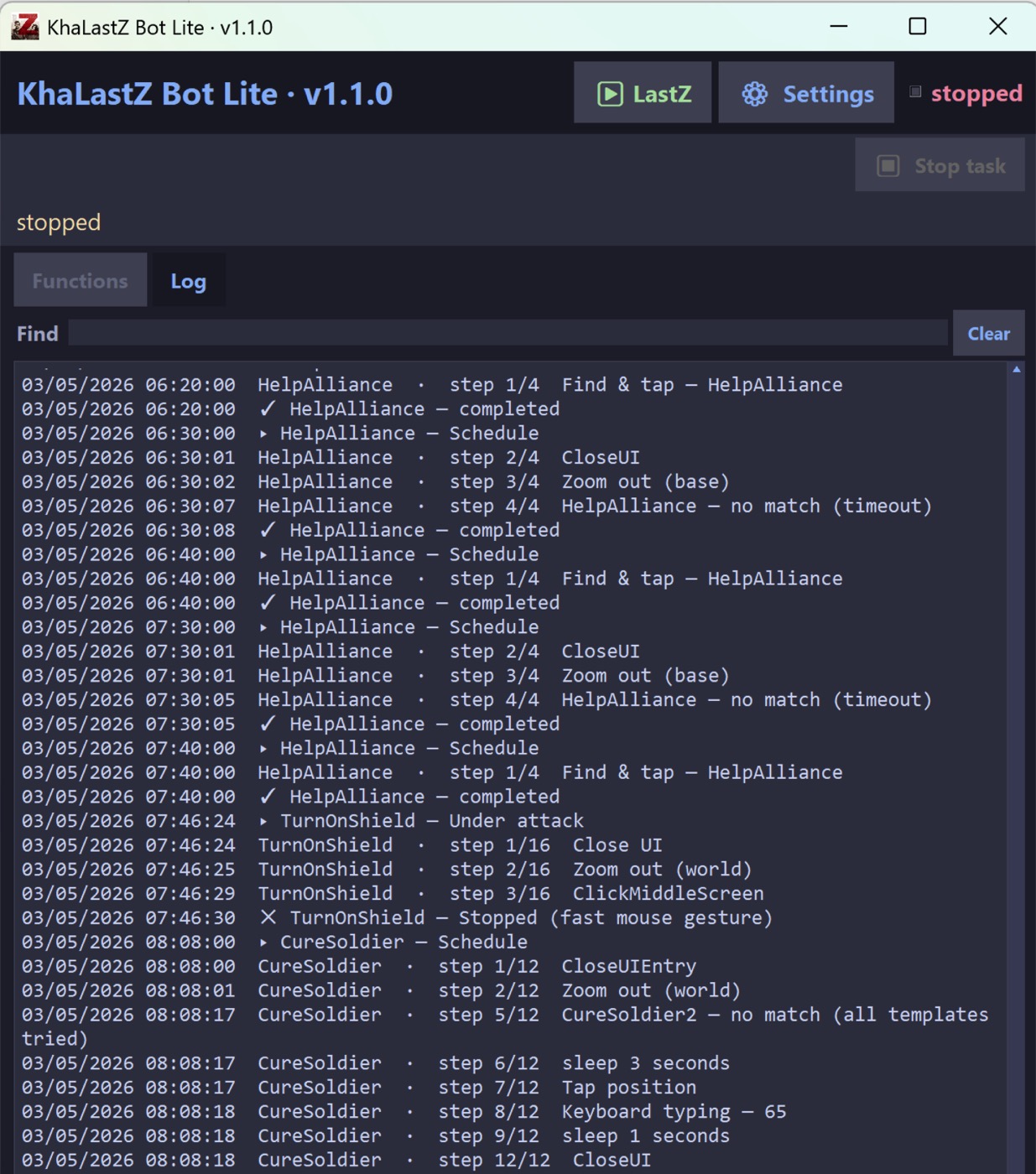
Logs have a retention limit; configure it in Settings (File retention / UI Log tab files).
Stopped and Running - 2 app bot states
Stopped = the app is idle and not active. Running = the app is ready to run:


Settings
Settings lets you change the bot’s main options. You must stop the bot first (switch to Stopped) before you can open Settings.
When Settings opens, the options window appears — details for each item are in Settings.
In Settings, set the game resolution to 540×960 on a Full HD screen, or 1080×1920 on 4K and above.
The bot Settings window:
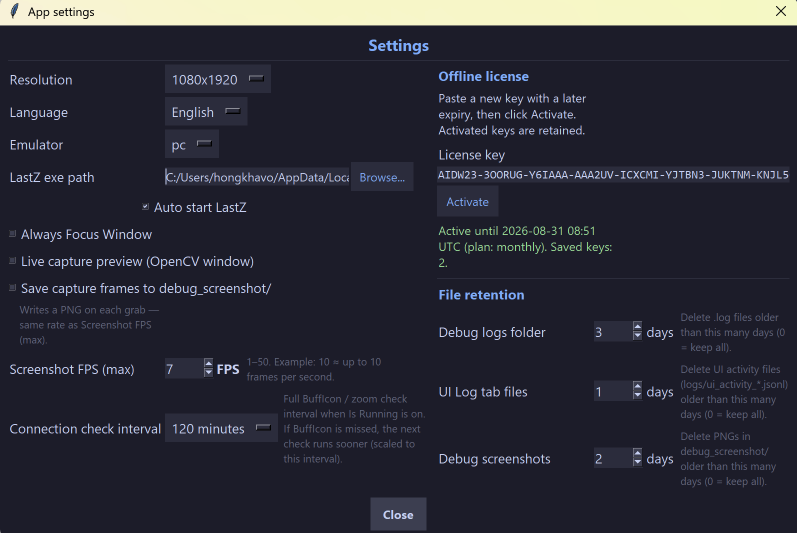
What each Settings option means: Settings.
LastZ start button
LastZ starts the Last Z game if it is not already running: