Schedule & hotkey
Each row is one function — one automated feature of the bot. This page explains the S Schedule setting for a function.

“S” icon — Schedule
The S icon sets the automatic run schedule for that function:
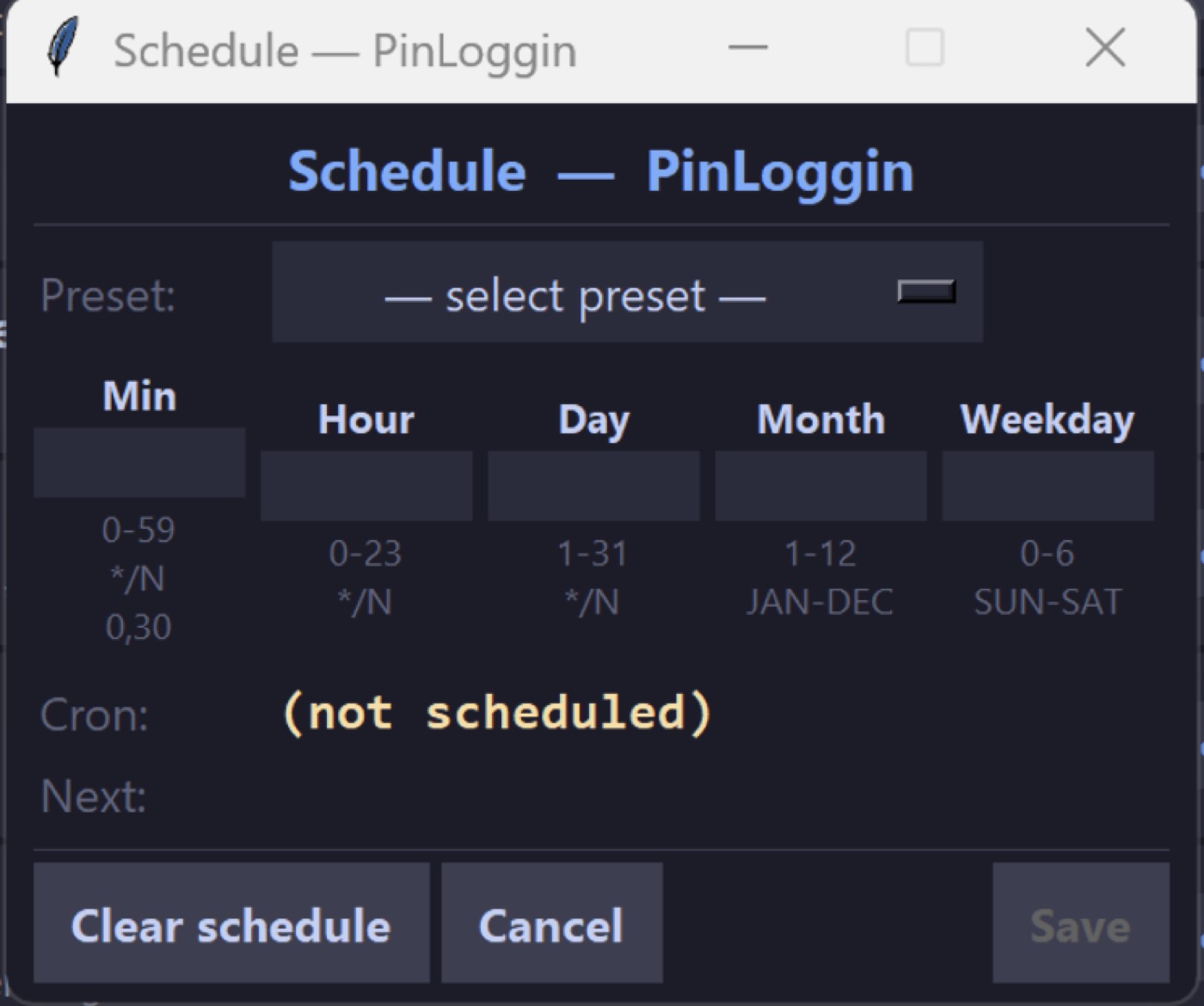
Choosing S opens the Schedule window. You can pick a Preset for a ready-made schedule. A Preset is a schedule that is already filled in for you.
Some sample Presets and what they mean:
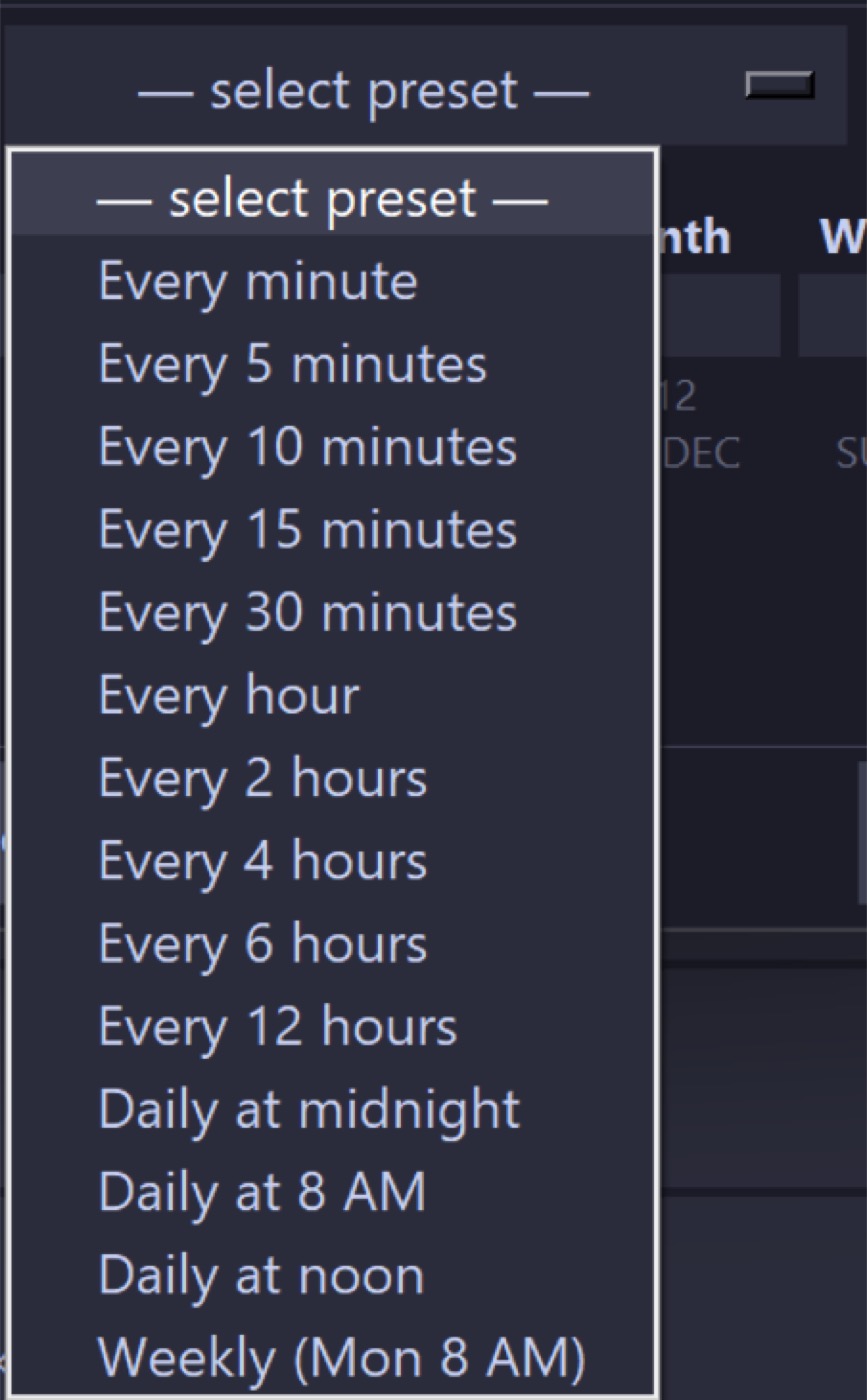
| Preset | Meaning |
|---|---|
| Every minute | Run every minute |
| Every 5 minutes | Run every 5 minutes |
| Every hour | Run every hour (on the hour) |
| Every 2 hours | Run every 2 hours |
| Daily at midnight | Every day at 00:00 (midnight) |
| Daily at 8 AM | Every day at 08:00 |
| Daily at noon | Every day at 12:00 (noon) |
| Weekly (Mon 8 AM) | Every week, Monday at 08:00 |
If you need a schedule that is not in the list (for example every 2 minutes on Saturday), use Advanced Cron below.
Advanced Cron
Fill in Min, Hour, Day, Month, Weekday:
| Field | Meaning |
|---|---|
| Min | Minute |
| Hour | Hour |
| Day | Day of month |
| Month | Month |
| Weekday | 1 = Monday … 7 = Sunday |
Examples:
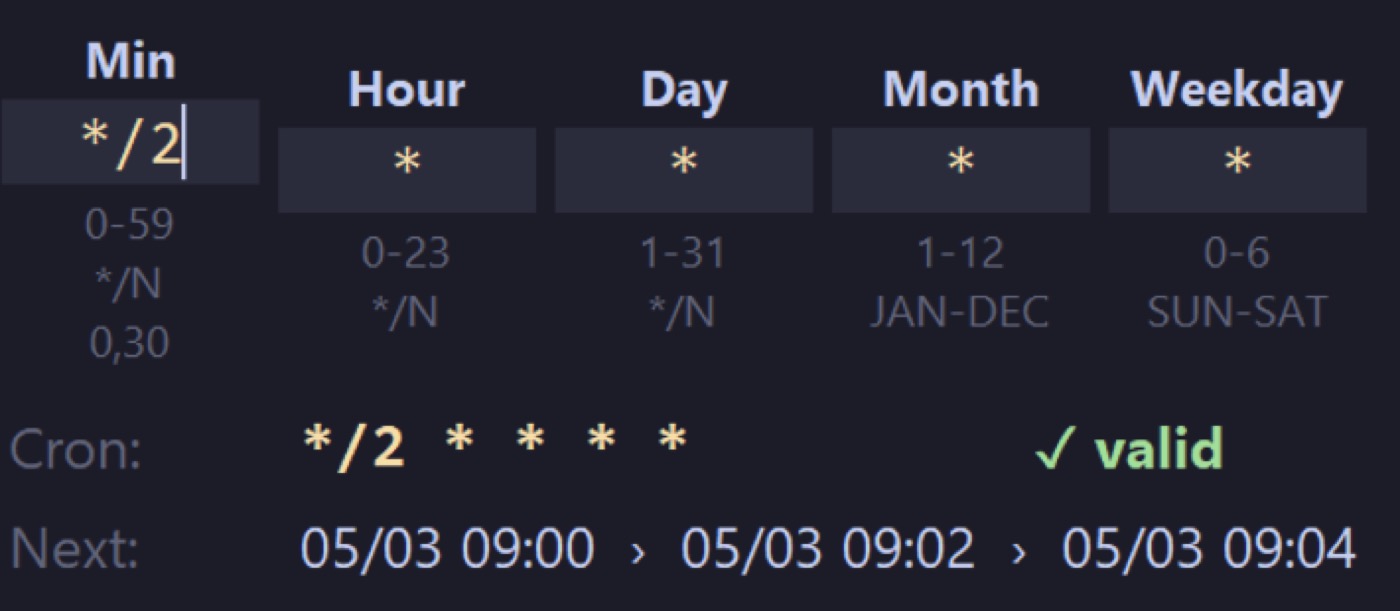
*/2 * * * * → the function runs every 2 minutes:
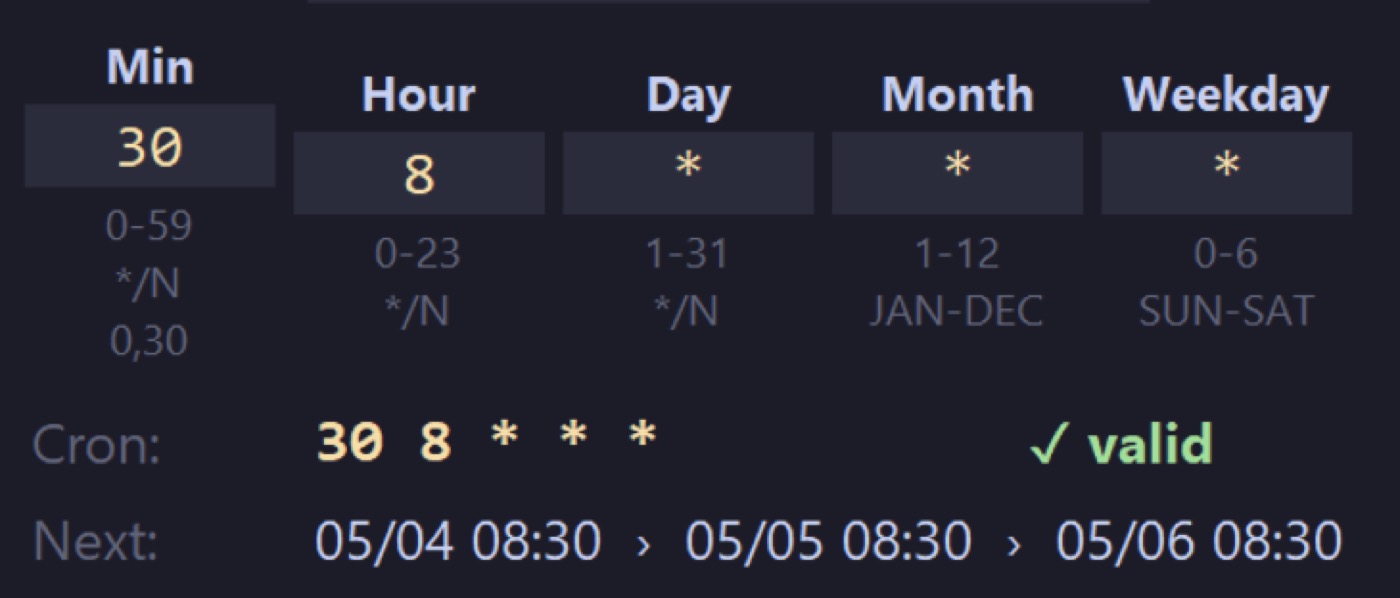
30 8 * * * runs at 08:30 every day:
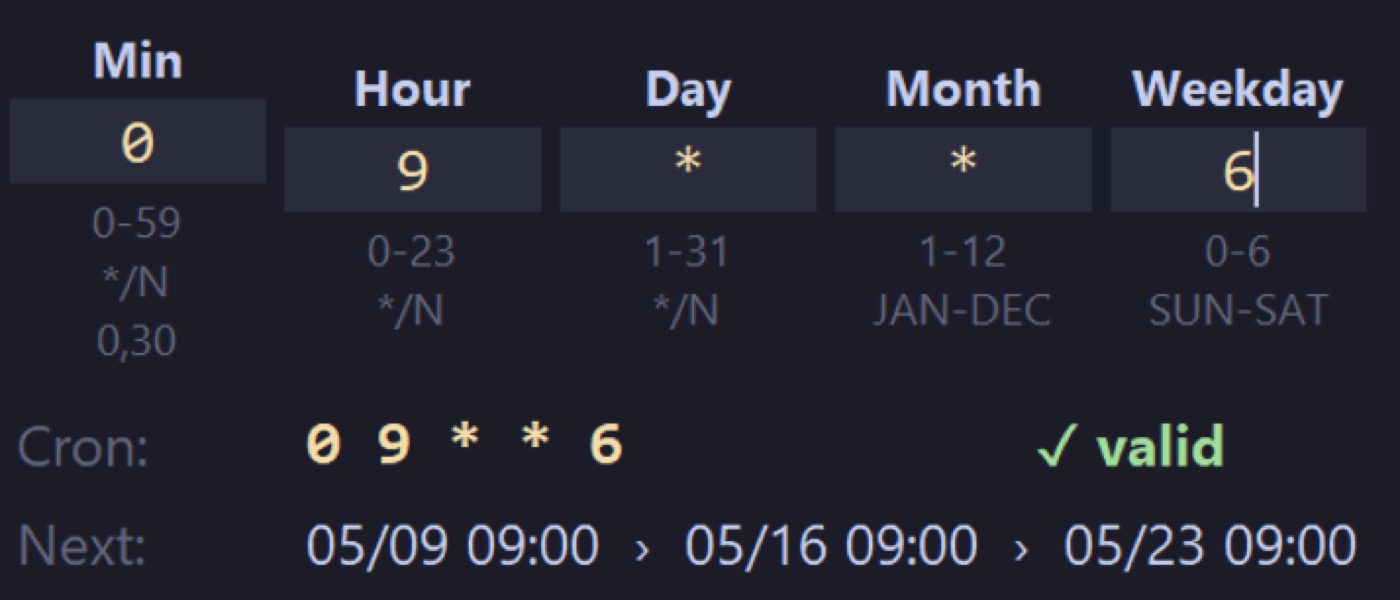
0 9 * * 6 runs at 09:00 every Saturday:
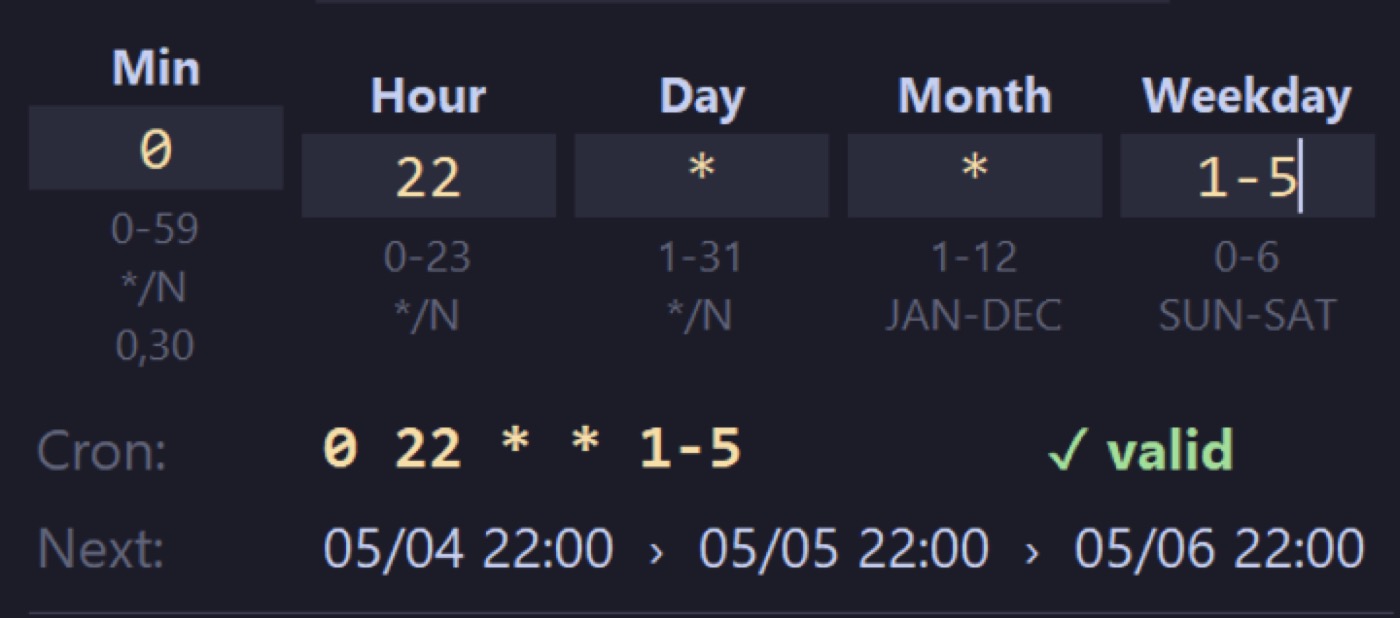
0 22 * * 1-5 runs at 22:00 Monday–Friday:
Hotkeys
Click + on a function to assign an activation hotkey.
After +, press a letter (A–Z) or a digit (0–9). For example, if you choose T as the key,
you activate it with Control + T.
You do not hold Control while assigning the shortcut — the app always adds Control for you.
While you are in shortcut-assignment mode, press Esc to leave that mode.
Click this + to add a hotkey for a function:
Assignment mode (waiting for a key):
Right-click to clear the assigned key — the function will no longer run from that hotkey.