Settings menu
You must stop the app before opening Settings (see App UI).
Resolution

- Choose 1080×1920 or 540×960 — Last Z game window resolution. Pick based on your current screen resolution.
- If your screen is 4K or higher, choose 1080×1920.
- If your computer is below 4K (2K, Full HD, …), choose 540×960.
Language

English or Vietnamese — changes the language for the entire AutoLastZBot UI.
LastZ exe path

- Click Browse… and select a valid Last Z PC
Last Z.exe. The default game path is usually under%LocalAppData%\Last Z\Last Z.exe. - Auto start LastZ: LastZ starts automatically when needed.
Always Focus Window

When Always Focus Window is on, the LastZ game window stays focused and on top — you cannot bring another app window to the front. This helps the bot recognize the game screen reliably. The downside is you cannot use other apps while the bot is running.
Live capture preview (OpenCV)
OpenCV window showing live capture frames — a developer feature; normal users should leave it off. Keep it disabled.
Save capture frames to debug_screenshot/
Continuously saves captured LastZ frames to the debug_screenshot/ folder — a developer feature; normal users should leave it off.
Keep it disabled.
Screenshot FPS

How often the app captures the game screen. Higher values capture more often; the bot can run more smoothly and accurately.
- Suggested: 1–50 (for example 10 ≈ 10 frames per second).
- Higher FPS = faster response, more CPU use. The default or around 7–10 FPS is usually a good fit.
Connection check interval
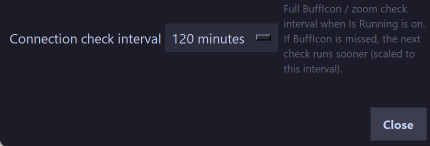
Time between in-game connection checks. When AutoLastZ detects the game lost network connection, the bot stops and restarts LastZ automatically. Check every: 5 / 30 / 60 / 120 minutes.
File retention
Mostly for developers. Users can set UI Log tab files — days to keep UI logs (logs still remain after restarting the app).
| Label | Meaning |
|---|---|
| Debug logs folder | Delete .log files in the debug folder older than N days. 0 = keep all |
| UI Log tab files | Delete logs/ui_activity_*.jsonl older than N days. 0 = keep all |
| Debug screenshots | Delete PNGs in debug_screenshot/ older than N days. 0 = keep all |